Managing social media sounds simple until you’re handling messages, posts, comments, ads, and insights across multiple platforms. That’s usually the point where things start slipping. Posts go out late. Messages pile up. You forget what you scheduled where.
Meta Business Suite exists to fix that exact problem.
It brings Facebook, Instagram, Messenger, ads, and insights into one dashboard, so you’re not jumping between tools all day. If you run a small business, manage client pages, or handle social media as part of your job, this tool can save you a surprising amount of time once you get comfortable with it.
This guide walks you through what Meta Business Suite does, how to set it up, and how to actually use it day to day.
What Is Meta Business Suite?
Meta Business Suite is an all in one management platform built by Meta to help businesses run their Facebook and Instagram accounts from one place.
Instead of opening Facebook for posting, Instagram for messages, and Ads Manager for campaigns, Meta Business Suite pulls everything together. You can publish content, reply to messages, check performance, run ads, and manage team access without switching tools.
It’s built for businesses of all sizes. Whether you’re a solo creator running one page or a team managing multiple accounts, the core goal stays the same: less chaos, more control.
Bonus: Instagram Hashtags: Everything You Need to Know
Key Features of Meta Business Suite
Meta Business Suite isn’t just a posting tool. It’s designed to handle most daily social media tasks in one place.
Unified Inbox
Messages and comments from Facebook, Instagram, and Messenger show up in a single inbox. This makes it much easier to respond on time and not miss customer questions. You can also set up automated replies for common questions.
Content Creation and Scheduling
You can create posts, Stories, and Reels for Facebook and Instagram, then schedule them in advance. The built in calendar view helps you see exactly what’s going out and when.
Insights and Analytics
The insights section shows reach, engagement, follower growth, and content performance. Instead of guessing what works, you can see which posts actually get attention and adjust your strategy.
Advertising Tools
You can create and manage ad campaigns directly inside Meta Business Suite. Budget controls, targeting options, and performance tracking are all available without opening Ads Manager separately.
Team and Permission Management
If more than one person works on your pages, you can assign roles and control who can post, reply, run ads, or view insights. This helps keep things secure and organized.
Cross Platform Integration
You can connect WhatsApp Business and manage customer messages from the same inbox. This is especially useful for businesses that rely on direct messaging for leads or support.
How to Get Started with Meta Business Suite
Getting started doesn’t take long, but setting things up properly from the beginning saves trouble later.
Create Your Account and Business Profile
Sign in using your Facebook account. If you already manage a Facebook Page, you can log in directly and access Meta Business Suite.
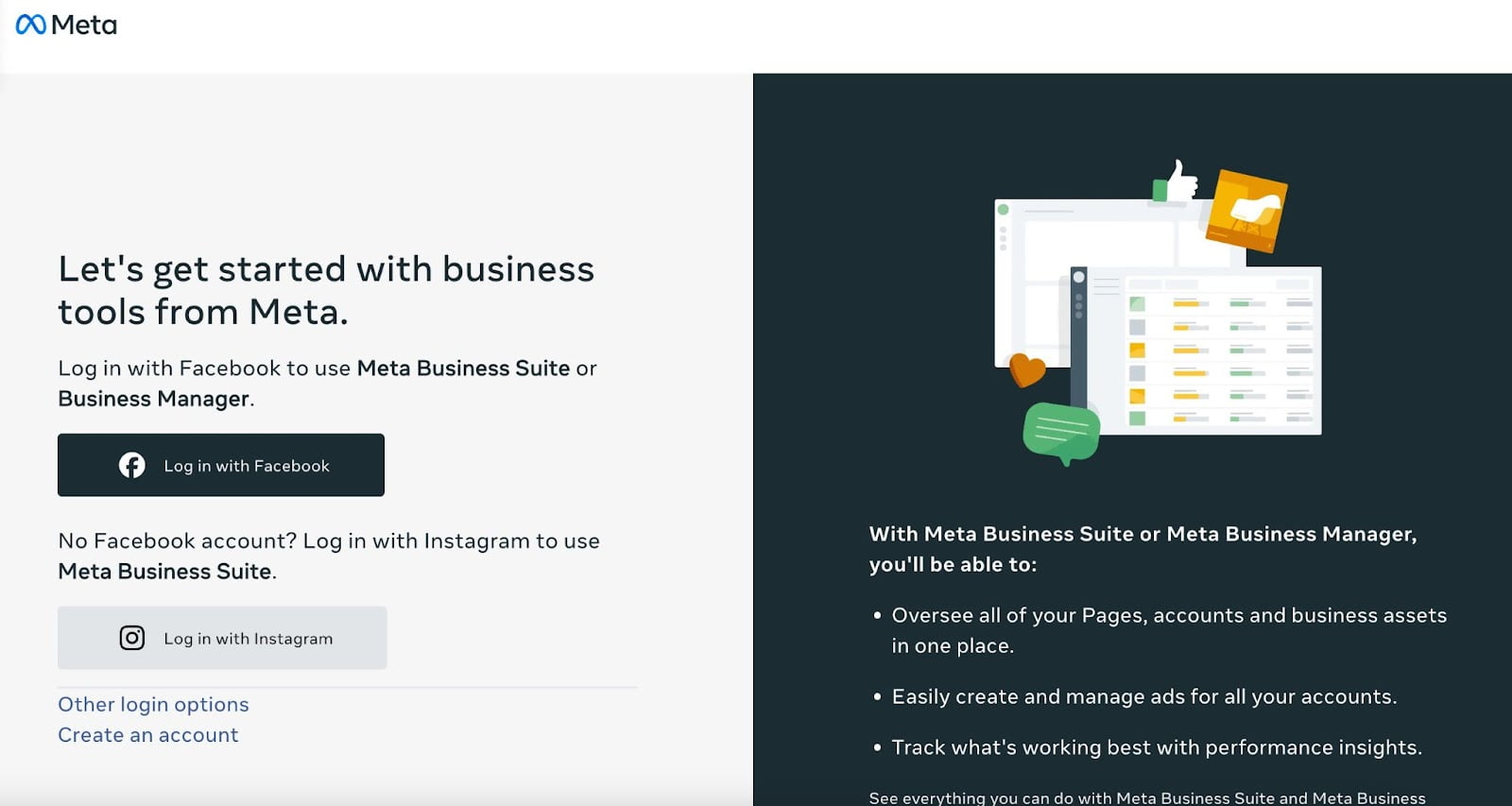
Once inside, complete your business profile. Add your business name, contact details, and category. This information helps customers trust your page and makes your business easier to find.
Business verification is optional at first, but it’s worth doing. Verified businesses often get access to more features and fewer restrictions over time.
Add Your Business Information
Make sure everything on your profile is accurate and complete.
Upload a clear profile picture and cover photo that represent your brand well. Fill out the About section with a simple explanation of what your business does, your hours, and how people can contact you.
For security, enable two factor authentication. This is especially important if multiple people have access to your account.
Understanding the Meta Business Suite Dashboard
At first glance, the dashboard can feel overwhelming. Once you know where things are, it becomes much easier to use.
Home
This is your overview screen. It shows recent performance, notifications, and shortcuts to create posts or ads.
Notifications
All activity like comments, likes, and messages appear here so you can respond quickly.
Inbox
This is where all messages and comments from Facebook, Instagram, and WhatsApp come together. It helps keep conversations organized instead of scattered across apps.
Content
Use this section to create, edit, schedule, and manage posts and Stories.
Planner
The Planner shows your scheduled content in a calendar format, making it easier to plan ahead and stay consistent.
Ads
This section lets you create, manage, and track ad campaigns without switching tools.
Insights
Here you can track performance data like reach, engagement, followers, and ad results.
Settings
Settings allow you to manage users, permissions, linked accounts, and security preferences.
Once you’re familiar with these sections, most daily tasks become quick and predictable.

How to Schedule Posts in Meta Business Suite
Scheduling posts helps you stay consistent without posting manually every day.
1. Access Content Creation: Go to your dashboard and choose either Home, Content, or Planner. In any of these sections, you’ll find an option to create a new post. Click on “Create Post” to begin.


2. Select Platforms: Decide where you want to share your post—on Facebook, Instagram, or both.

3. Enter Post Details:
- Caption: Write your text, add hashtags, or mention other accounts.
- Media: Upload photos or videos by clicking “Add Media.”
- Tags and Location: Add tags and location details to help people find your post.
4. Edit Your Post: If needed, adjust your media by clicking the “Edit” button that appears when you hover over your content.
5. Preview Your Post: On the right side of the screen, you can see how your post will look on Facebook and Instagram, both on desktop and mobile.

6. Boost Option: If you want to reach a wider audience, you can choose to “Boost” your post, turning it into an ad.
7. Schedule or Publish: When you’re ready, you can:
- Schedule: Set a date and time for your post to go live.
- Publish: Post it immediately.
- Finish Later: Save a draft to complete later.
By following these steps, you can easily schedule and manage your posts, ensuring a steady presence on Facebook and Instagram with Meta Business Suite.
Bonus: Is LinkedIn Premium Worth It? Costs and benefits
Creating and Scheduling a Reel
1. Start Creating: Click on the “Create Reel” button, which you’ll find next to the “Create Post” button on your Meta Business Suite dashboard. This will open up the reel creation page.
2. Choose Where to Share: Decide where you want your Reel to appear by selecting the accounts in the “Share to” field. You can choose Facebook, Instagram, or both.
3. Upload Media: Click “Add Video” or “Add Photos” to upload the videos or photos you want to include. Keep in mind that Instagram only supports video Reels, so your content should be in video format.
4. Write a Caption: In the details section for your Reel, add a caption that will grab your audience’s attention and explain what your Reel is about. Use relevant hashtags to help people find your content.
5. Select a Thumbnail: Choose a thumbnail image for your Reel. You can pick from the suggested options or upload your own. This image will show up as a preview of your Reel.

6. Add Collaborators (Optional): If you’re working with others on this Reel, enter their names or URLs in the “Collaborator” section. They’ll receive an invitation to join the Reel.
7. Edit Your Reel: Click “Next” to move to the editing stage. Here, you can add popular audio tracks and make other video edits. Use the “Edit” button if you need to adjust your media.
8. Promote Your Reel (Optional): If you want to reach a larger audience, choose the “Boost” option to turn your Reel into an ad.

9. Schedule or Share: When you’re happy with your Reel, you can choose to “Share Now,” “Schedule,” or “Finish Later.” Note that Instagram Reels can’t be saved as drafts; only Facebook Reels can be saved this way. If scheduling, pick the date and time you want your Reel to go live.
10. Set Preferences: You can allow “Remixing” or accept gifts from your viewers. You can also decide whether to make your Reel public or limit it to a specific group.
By following these steps, you can effectively create and schedule engaging Reels for Facebook and Instagram, making the most of your social media presence with well-timed content.
Creating and Scheduling a Story
To create and schedule an Instagram or Facebook Story:
1. Access Story Creation: On the Meta Business Suite dashboard, click the drop-down menu next to the “Create post” button and select “Create Story.”

2. Add Media: Upload photos or videos you want to include in your Story. You can choose several images or videos at once to create your Story sequence.
3. Edit Your Story: Click the “Edit” button to make adjustments to your Story. You can crop images, add text, and use stickers. Adjust the placement and size of elements as needed.
4. Select Publishing Destination: Decide where you want your Story to appear—Facebook Stories, Instagram Stories, or both.
5. Schedule or Publish: When you’re happy with your Story, you can either click “Share” to post it right away or click “Schedule” to set a time for it to be published later.
How to Add a Facebook Business Page to Meta Business Suite
1. Log In: Start by logging into your Meta Business Suite account with the credentials associated with your business.
2. Access Settings: In the left-hand menu, go to the “Settings” tab. This is where you manage all account details.
3. Select Pages: Under the “Accounts” category, choose “Pages.” This option lets you manage and add Facebook Pages to your Meta Business Suite account.
4. Add a Page: Click the “Add” button. You’ll see three choices: “Add a Page,” “Request Access to an Existing Page,” or “Create a New Page.” Since you likely have a Facebook Page already, select “Add a Page.”

5. Enter Page Details: Type in the name or URL of the Facebook Page you want to add. This helps Meta Business Suite find the right Page.
6. Verify Ownership: If you own the Page, you’ll need to verify ownership by logging into your Facebook account. Follow the instructions on the screen to complete this step.
7. Finalize: Once verified, click “Add Page” to finish. The Page will now be part of your Meta Business Suite dashboard, allowing you to manage it with your other social media assets.
How to Add an Instagram Account to Meta Business Suite
Follow these steps to add an Instagram account:
1. Log In to Your Meta Business Suite Account: Start by logging into Meta Business Suite using your Facebook login details.
2. Go to Settings: Find and click on the “Settings” tab in the menu on the left. This section is where you can manage different account settings and integrations.
3. Choose Instagram Accounts: Under the “Accounts” section, click on “Instagram Accounts.” This will take you to the page where you can manage your Instagram accounts.
4. Add Your Instagram Account: Click on the “Add” button to start linking your Instagram account to Meta Business Suite.
5. Review and Agree to Terms: A window will pop up, letting you know that only Instagram professional accounts can be added. If you’re adding a personal account, it will be switched to a professional account. Check the terms and click “Claim Instagram Account” to continue.
6. Log In to Instagram: Another window will open asking you to log into Instagram. Enter your Instagram username and password, then click “Log In.”
7. Authorize Meta Business Suite: Once logged in, you’ll need to authorize Meta Business Suite to access your Instagram account. Click “Authorize” to give the necessary permissions.
How to Connect WhatsApp with Meta Business Suite
To connect your WhatsApp Business inbox with Meta Business Suite, follow these steps:
1. Open Meta Business Suite: Start by opening your Meta Business Suite dashboard and go to the “Settings” section.
2. Select WhatsApp Accounts: Click on the “Accounts” menu and choose “WhatsApp Accounts.”
3. Add Your Account: Click the “Add” button to begin connecting your WhatsApp Business account.
4. Follow the Instructions: Follow the on-screen prompts to link your WhatsApp Business account and complete your profile setup.

How to Connect Your Ad Accounts in Meta Business Suite
To add an ad account to your Meta Business Suite:
1. Open Settings: From the Meta Business Suite dashboard, find and click on the “Settings” option.
2. Find Ad Accounts: In the menu, select “Accounts,” then click on “Ad Accounts.”
3. Add or Request Access: Decide if you want to create a new ad account, claim one that’s already set up, or ask for access to a new one. Enter the ad account ID and follow the instructions to assign people and set their access levels.
4. Confirm: Click the “Add” button to complete the connection. Your ad account will now be connected to Meta Business Suite, so you can manage and monitor your advertising campaigns.
Bonus: How to Add Music to Your Instagram Story
How to Check Your Analytics in Meta Business Suite
Meta Business Suite offers detailed reports and insights to help you understand how your social media accounts are performing. These reports cover things like who is interacting with your content, how your posts are performing, and how your ads are doing. Here’s how you can use the analytics dashboard:
Access Insights: Start by clicking the “Insights” tab on your main dashboard. This will open up the analytics page, where you can see detailed performance information for your Facebook and Instagram accounts.
Dashboard Sections:
- Overview: This section gives you a quick look at recent performance, including key metrics like impressions, reach, content interactions, followers, link clicks, and minutes viewed. It also shows how reach is split between organic (free) and paid (ad) sources.
- Content Performance: Here, you can dive into how your content is doing. Check different tabs like Posts and Reels, Stories, and Ads to see engagement metrics and growth trends.
- Messaging: Track how your messaging is performing. This includes new contacts, conversations started, earnings from messages, orders created, and your response rate.
- Audience Insights: Get detailed information about your followers, such as their demographics, location, and behavior, so you can better tailor your content to them.
- Ad Performance: Review the metrics related to your ad campaigns, such as spending, reach, and conversions. This helps you see how effective your ads are and how to improve them.
- Recommendations: Based on your current performance, you’ll get actionable suggestions to boost your reach, engagement, and ad performance.
Using these insights can help you figure out who is most engaged with your content, the best times to post, and the most effective ad strategies.
How to manage users in Meta Business Suite
Managing users in Meta Business Suite is essential for keeping your workflow secure and running smoothly. Here’s a straightforward guide to help you add new users, set their permissions, and remove users when necessary:
How to Add New Users in Meta Business Suite
1. Log In: Access your Meta Business Suite account and go to the “Settings” tab located in the left-hand menu.
2. Navigate to Users: Under the “Users” category, click on the “People” section to manage users.
3. Invite Users: Click the “Invite People” button and enter the email addresses of the users you want to add, separating multiple addresses with commas.
4. Advanced Options: Toggle on “Temporary access” if you want to provide limited-time access. Click “Next” to proceed.
5. Send Invitation: Review the details and click “Invite.” The users will receive an email with instructions on how to join your Meta Business Suite.
How to Set User Permissions in Meta Business Suite
1. Manage Users: Go to the “Users” section under “Settings” and choose the user whose permissions you want to change.
2. Edit Permissions: Click the “Edit” button next to the user’s name. You’ll see a list of permissions that you can adjust, including:
- Full control of Facebook
- Partial control of Facebook
- Access to handle messages, community activities, ads, and insights
- Access to manage ads and insights
- Access to insights only
- Community Manager access to moderate live chats
3. Customize Permissions: Choose which permissions to grant or remove based on the user’s responsibilities. For example, you might let an Editor create and schedule posts but not see analytics or manage ads.
4. Save Changes: After adjusting the permissions, click “Save” to apply the changes. These updates will take effect right away.
How to Remove Users in Meta Business Suite
- Go to the People Section: First, find the “People” section under “Settings” in Meta Business Suite.
- Find the User: Look for the user you wish to remove from the list of team members.
- Tap Remove: Click the “Remove” button next to their name. A confirmation window will pop up.
- Confirm Removal: Click “Remove” again to finalize the process. The user will then lose access to your Meta Business Suite.
It’s a good idea to regularly review and update user roles and permissions to make sure only authorized people can access sensitive information. This helps keep your business data safe and supports effective teamwork.
FAQs about Meta Business Suite
Do You Need a Facebook Account to Use Meta Business Suite?
Yes, you need a Facebook account to use Meta Business Suite. This tool is designed to help manage both Facebook and Instagram accounts, so having a Facebook account is essential for setting it up and accessing it.
How Much Does It Cost to Use Meta Business Suite?
Meta Business Suite is free of charge. It offers a variety of tools and features at no cost. However, if you decide to run paid advertisements, those will incur additional costs.
Is Meta Business Suite Different from Facebook/Meta Business Manager?
Yes, Meta Business Suite is an improved version of Facebook Business Manager. It provides a more integrated and user-friendly interface for managing both Facebook and Instagram accounts, and it includes additional features.
Is Meta Business Suite Different from Facebook Creator Studio?
Yes, Meta Business Suite and Facebook Creator Studio are different. Creator Studio is geared towards content creation and scheduling for Facebook and Instagram, while Meta Business Suite provides broader management tools, including ad management, analytics, and messaging.
Final Thoughts
Even if you use other social platforms, Meta Business Suite is worth setting up if Facebook and Instagram matter to your business. Once everything is connected, it becomes much easier to stay consistent, respond faster, and understand what’s actually working.
It takes a bit of time to learn, but once it clicks, managing social media feels far less chaotic.